# Pintora Documentation
> An extensible text-to-diagrams library that works in both browser and node.js
This file contains all documentation content in a single document following the llmstxt.org standard.
## Intro
Pintora is a javascript text-to-diagrams library that works in both browser and Node.js.
Expressing your thoughts in a diagram is better than a thousand words. With the help of pintora.js, you can create diagrams with intuitive text.
Heavily inspired by [Mermaid.js](https://mermaid-js.github.io/mermaid/#/) and [PlantUML](https://plantuml.com/).
## Features
- In browser side, output SVG or Canvas.
- In Node.js side, output PNG/JPG/SVG file.
- \[Planning\] Modular and composable, load specific diagram implementaions only when needed, keep the core code lightweight.
- Highly extensible, provide a plugin system for diagram developer to write and distribute their own diagrams. See [Write a custom diagram](./advanced/write-a-custom-diagram.md)
## Diagram types
- [Sequence Diagram](./diagrams/sequence-diagram.mdx)
- [Entity Relationship Diagram](./diagrams/er-diagram.mdx)
- [Component Diagram](./diagrams/component-diagram.mdx)
- [Activity Diagram](./diagrams/activity-diagram.mdx)
- [Mind Map](./diagrams/mindmap.mdx) Experiment
- [Gantt Diagram](./diagrams/gantt-diagram.mdx) Experiment
- [DOT Diagram](./diagrams/dot-diagram.mdx) Experiment
- [Class Diagram](./diagrams/class-diagram.mdx)
```pintora play
mindmap
@param layoutDirection TB
* Pintora diagrams
** UML Diagrams
*** Sequence Diagram
*** Activity Diagram
*** Component Diagram
** Non-UML Diagrams
*** Entity Relationship Diagram
*** Mind Map
*** Gantt Diagram
*** DOT Diagram
```
## 💻 Editor Support
- VSCode extension [pintora-vscode](https://marketplace.visualstudio.com/items?itemName=hikerpig.pintora-vscode), providing syntax highlight and preview support for `.pintora` file and markdown code fence.
## Related Projects
- [gatsby-remark-pintora](https://github.com/hikerpig/gatsby-remark-pintora) A gatsby remark plugin for converting pintora codeblock to diagrams in markdown files.
- [Pintora.js - Diagram as text / hikerpig / Observable](https://observablehq.com/@hikerpig/pintora-js-diagram-as-text), use pintora in Observable interactive notebook.
- [pintora-stencil - Pintora Web Components](https://github.com/hikerpig/pintora-stencil), web component for showing pintora diagram preview, add it into your website simply by import some script tags.
- [obsidian-pintora](https://github.com/amiaslee/obsidian-pintora), created by [@amiaslee](https://github.com/amiaslee). An Obsidian plugin based on Pintora, which allows users to create diagrams using Pintora syntax directly in the Obsidian editor. It's local, secure, fast, and easy to use.
---
## Basic Syntax
## Diagram Syntax Structure
All Diagrams definitions begin with a declaration of the diagram type, followed by the definitions of the diagram and its contents.
For example, the DSL below specify a [Component Diagram](/diagrams/component-diagram.mdx) by the `componentDiagram` declaration.
```pintora play
componentDiagram
[Pintora] --> [DiagramRegistry] : Get diagram by type
```
## Comments
You can add line comment with `%%` prefixed, the content in that line will not be rendered.
```pintora play
sequenceDiagram
%% here is line comment
%% another line comment
A-->B: Hi there!
```
## Directives
### @param and @config
You can override current diagram config with these directives.
See [Config](/configuration/config.md) for more details.
```pintora play
erDiagram
@param fontSize 18
@config({
"themeConfig": {
"theme": "larkLight"
},
"er": {
"edgeType": "ortho"
}
})
CUSTOMER {
int id PK
int address FK
}
CUSTOMER ||--o{ ORDER : places
ORDER ||--|{ LINE-ITEM : contains
CUSTOMER }|..|{ DELIVERY-ADDRESS : uses
```
---
## Usage
## Browser
### UMD
Use this UMD build:
```html
```
Here is a CodePen example:
### ESM
Use this ESM build from Skypack:
```html
```
Here is a CodePen example for using ESM version to register a custom theme:
## Browser and Web Components
[pintora-stencil - Pintora Web Components](https://github.com/hikerpig/pintora-stencil), this project comes with web component for showing pintora diagram preview, add it into your website simply by import some script tags.
## CLI
@pintora/cli is a simple multi-command command-line Node.js application.
You can install it globally with:
```
npm i -g @pintora/cli
```
Get some help with `pintora --help`:
```sh
pintora [command]
Commands:
pintora render Render DSL to diagram image
Options:
--version Show version number [boolean]
--help Show help [boolean]
```
### pintora render
```sh
pintora render
Render DSL to diagram image
Options:
--version Show version number [boolean]
--help Show help [boolean]
-i, --input Input file path [required]
-o, --output Output file path
-p, --pixel-ratio Pixel ratio [default: 2]
-b, --background-color Background color
-t, --theme Pintora theme [default: "default"]
-w, --width Canvas width
```
examples:
```sh
pintora render -i ../test-shared/example-files/sequence.pintora -o sequence.png
# Set image background color
pintora render -i ../test-shared/example-files/sequence-2.pintora -b "#FAFAFA" -o sequence-2.jpg
# Preview with theme 'dark'
pintora render -i ../test-shared/example-files/sequence-2.pintora --theme dark -o sequence-2.jpg
# Set canvas width to 1000, and set `core.useMaxWidth` to true by default
pintora render -i ../test-shared/example-files/sequence.pintora --width 1000 -o sequence-w-1000.jpg
```
---
## Activity Diagram
> Activity diagrams are graphical representations of workflows of stepwise activities and actions with support for choice, iteration and concurrency.
> Wikipedia
## Introduction
The Activity Diagram is inspired by PlantUML's [Activity Diagram Beta Syntax](https://plantuml.com/en/activity-diagram-beta).
## Simple Action
Simple action starts with `:` and ends with `;`, with description between them.
```pintora play
activityDiagram
title: Activity Diagram Simple Action
:Action 1;
:Action 2;
```
## `start`/`end` keyword
You can use `start` and `end` keyword to denote the beginning and the end of a diagram.
```pintora play
activityDiagram
start
:No pain;
:No gain;
end
```
## Conditional
You can use `if`, `then` and `else` to put tests and branches. Labels can be provided using parentheses.
- `if (...) then (...)`
```pintora play
activityDiagram
if (diagram registered ?) then
:get implementation;
else (no)
:print error;
endif
```
## While Loop
You can use `while` and `endwhile` to make while loops.
And it's possibleto provide a label after the `endwhile` keyword, or using the `is` keyword to provide label for the link.
```pintora play
activityDiagram
start
while (data available)
:read data;
:generate diagrams;
endwhile
while (met another test) is (yes)
:do something;
endwhile (done)
end
```
## Repeat Loop
You can use `repeat` and `repeatwhile` to make repeat loops.
```pintora play
activityDiagram
start
repeat
:read data;
:generate diagrams;
repeatwhile (data available ?)
end
```
```pintora play
activityDiagram
start
repeat :prepare for each loop;
:read data;
:generate diagrams;
repeatwhile (there is more data ?) is (alright then) not (nope)
end
```
## Switch And Case
You can use `switch`, `case` and `endswitch` to pu switch sentences.
```pintora play
activityDiagram
switch (test ?)
case ( condition A )
:Text 1;
case ( condition B )
:Text 2;
case ( condition C )
:Text 3;
endswitch
```
## Grouping
You can use several keywords to make groups:
- `group`
- `partition`
And it's possible to add color `#\d{6}` after the grouping keyword to specify background color.
```pintora play
activityDiagram
start
partition Init {
:Read config;
group #88bbf4 "Inner Process" {
:Init themes;
:Init symbols;
}
}
end
```
## Parallel processing (fork)
You can use `fork` / `forkagain` / `endfork` / `endmerge` to denote parallel processing.
1. Simple fork.
```pintora play
activityDiagram
start
fork
:Action 1;
forkagain
:Action 2;
forkagain
:Action 3;
endfork
end
```
2. With `endmerge`.
```pintora play
activityDiagram
start
fork
:Action 1;
forkagain
:Action 2;
endmerge
end
```
3. Another example of combining conditional and fork.
```pintora play
activityDiagram
start
if (multiprocessor?) then
fork
:Action 1;
forkagain
:Action 2;
endfork
else (monoproc)
:Action 1;
:Action 2;
endif
end
```
## Note
Add `@note`, placement, and participant names after action to add a note.
1. placement keywords `left` and `right`.
1. note can be multiline, in this case you need to add `@end_note` to end it.
```pintora play
activityDiagram
start
:Some action;
@note right: note on the right
if (diagram registered ?) then
:get implementation;
else (no)
:print error;
endif
@start_note left
left multiline note,
no colon after placement
@end_note
end
```
## Arrow Label
In the next line of action, you can add label to the arrow with the arrow label notation.
Currently only single line text is supported.
```
-> multiline description;
```
```pintora play
activityDiagram
start
:Action 1;
-> Hey there;
:Action 2;
end
```
## Override config
You can override diagram config through `@param` directive.
All available configs can be seen in the [Config page](../configuration/config.md#activity).
```pintora play
activityDiagram
@param actionBackground #61afef
@param textColor #fff
@param noteTextColor #purple
@param edgeColor #143C9A
@param edgeType curved
@param {
keywordBackground #143C9A
labelTextColor #143C9A
}
start
partition Init {
:Read config;
@note right: comment
}
while (data available) is (yes)
:read data;
endwhile
end
```
---
## Class Diagram
> A class diagram in the Unified Modeling Language (UML) is a type of static structure diagram that describes the structure of a system by showing the system's classes, their attributes, operations (or methods), and the relationships among objects.
> Wikipedia
## A simple demo
```pintora play
classDiagram
title: Class Diagram Example
class Fruit {
<>
float sweetness
-float age
float getAge()
}
class Apple {
float softness
{static} Apple fromString(str)
}
%% There are so many kind of fruits
Fruit <|-- Apple
Fruit <|-- Kiwi
Fruit <|-- Banana
Fruit "many" --* "1" Bag: packed into
```
## Define a class
## Class members
To declare fields and methods, you can use the symbol `:` followed by the field's or method's name.
It is also possible to group between brackets `{}` all fields and methods.
You can write type and name in any order you prefer.
```pintora play
classDiagram
class Fruit {
float sweetness
squeeze()
}
Fruit : getAge(): float
```
### Member visibility
Define member visibility with these symbols. The notaiton is optional but it should be placed before the member.
- `+` public
- `#` protected
- `-` private
- `~` package/internal
## Class annotations
You can annotate classes with markers to provide additional metadata about the class. This can give a clearer indication about its nature. Some common annotations include:
- `<>` To represent an interface class
- `<>` To represent an enum
Annotations are defined within the opening `<<` and closing `>>`. There are two ways to add an annotation to a class:
```pintora play
classDiagram
class Shape
<> Shape
Shape : vertices
Shape : draw()
class Color {
<>
Red
Green
Blue
}
```
## Relations between classes
You can define relations between classes using following symbols :
| Type | Description |
| ------- | ----------- |
| `<\|--` | Inheritance |
| `*--` | Composition |
| `o--` | Aggregation |
| `-->` | Association |
| `--` | Link |
It is possible to replace `--` by `..` to have a dotted line.
```pintora play
classDiagram
classA <|-- classB
classC *-- classD
classE o-- classF
classG <-- classH
classI -- classJ
classK <.. classL
classM <|.. classN
classO .. classP
```
### Label on relations
You can add a label on the relation, using `:`, followed by the text of the label.
Also, you can use double-quotes `""` on each side of the relation for cardinality.
```pintora play
classDiagram
classA "1" *-- "many" classB : contains
classC o-- classD : aggregation
classE --> "1" classF
```
## Override config
You can override diagram config through `@param` directive.
All available configs can be seen in the [Config page](../configuration/config.md#class).
```pintora play
classDiagram
@param entityBackground #61afef
class Animal {
}
class Dog {
void bark()
}
Animal <|-- Dog
```
## Selectors For Custom Style
1. id `class-{name}` for one specific class
2. class `class__entity` for all class objects
```pintora play
@pre
@style {
.class__entity {
textColor: white;
}
.class__section-bg {
backgroundColor: #555555;
textColor: #61afef;
}
}
@endpre
classDiagram
class Animal {
}
class Dog {
void bark()
}
Animal <|-- Dog
```
---
## Component Diagram
> In Unified Modeling Language (UML), a component diagram depicts how components are wired together to form larger components or software systems. They are used to illustrate the structure of arbitrarily complex systems.
> Wikipedia
## Components and Interfaces
You can define a component in multiple ways, inside brackets or with the `component` keyword.
Interface can be defined using the `()` symbol, or the `interface` keyword.
And you can define an alias, using the `as` keyword. This alias will be used later, when defining relations.
```pintora play
componentDiagram
title: Component Diagram Components and Interfaces
component comp1
[comp2]
[component 3] as comp3
component comp4 [
This component has
long description
]
interface "I1"
() "I2"
() "I3" as interf3
```
## Relations
Relations between elements are made using combinations of dotted line (..), straight line (--), and arrows (-->) symbols.
```pintora play
componentDiagram
DataQuery -- [Component]
[Component] ..> HTTP : use
```
## Grouping
You can use several keywords to group components and interfaces together:
- `package`
- `node`
- `folder`
- `frame`
- `cloud`
- `database`
- `rectangle`
- `component`
```pintora play
componentDiagram
package "Some Group" {
[First Component]
HTTP -- [First Component]
[Another Component]
}
node "Other Groups" {
[Second Component]
FTP -- [Second Component]
[First Component] --> FTP
}
cloud "Cloud" {
[Example 1]
}
database "MySql" {
folder "This is my folder" {
[Folder 3]
}
frame "Foo" {
[Frame 4]
}
}
[Another Component] --> [Example 1]
[Example 1] --> [Folder 3]
[Folder 3] --> [Frame 4]
```
## Override config
You can override diagram config through `@param` directive.
All available configs can be seen in the [Config page](../configuration/config.md#component).
```pintora play
componentDiagram
@param componentBackground #61afef
@param componentBorderColor #61afef
DataQuery -- [Component]
[Component] ..> HTTP : use
```
## Selectors For Custom Style
1. id `node-{name}` for component/interface
1. class `component__interface` for all interfaces
1. class `component__component` for all components
```pintora play
@pre
@style {
.component__interface {
backgroundColor: #61afef;
}
#node-IDeletable {
backgroundColor: red;
}
}
@endpre
componentDiagram
[folder]
() IAccessible
() IDeletable
[folder] --> IAccessible
[folder] --> IDeletable
```
---
## DOT Diagram
Experiment syntax may change.
## Introduction
This is a subset of [Graphviz](https://graphviz.org/)'s [DOT Language](https://graphviz.org/doc/info/lang.html) and visualization.
It can be used to describe a simple general graph.
## Limitations
Graphviz is a versatile and wonderful visualization library, dotDiagram only covers a small part of its functionality.
- as the name implies, only `dot` layout is supported, and layout result is not the same as graphviz
- ports are not supported
- many attributes can be parsed but not supported, they do not affect the result
## Syntax
### Compatible with Graphviz
The keywords **node**, **edge**, **graph**, **digraph** and **subgraph**.
A graph must be specified as either a `digraph` or a `graph`, they stand for directed and undirected graph. A digraph must specify an edge using the edge operator `->` while an undirected graph must use `--`.
You can also specify attributes inside `[key=val]` square brackets.
The subgraph inherit the attribute settings of its parent graph at the time of its definition.
```pintora play
dotDiagram
%% pintora style comment
%% here we declare a directed graph
digraph G {
// specify graph attributes
bgcolor="white"
// specify common node attributes
node [color="#111",bgcolor=orange]
subgraph S1 {
// subgraph will inherit parent attributes
label="Sub";
a1 [fontcolor="purple",margint=10];
}
/* usually we put edges at the last */
a1 -> b1;
n1 -> end [color="blue"];
a2 -> end;
}
```
### Node shorthand
`name["label"]` as a shorthand of `name[label="label"]`
```pintora play
dotDiagram
digraph {
bgcolor="#faf5f5";
core["@pintora/core"];
diagrams["@pintora/diagrams"];
standalone["@pintora/standalone"];
diagrams -> core;
standalone -> core;
standalone -> diagrams;
}
```
## Attributes
Here are some supported attributes on node, edge, and graph.
```ts
export type DOTShapeType = 'box' | 'ellipse' | 'circle' | 'diamond' | 'plaintext'
// https://graphviz.org/doc/info/attrs.html
export type NodeAttrs = {
label?: string
/** stroke color */
color?: string
/** label text color */
fontcolor?: string
/** background color */
bgcolor?: string
/** font family for node label */
fontname?: string
/** font size for node label */
fontsize?: number
/** shape of node */
shape?: DOTShapeType
/** [pintora specific], margin top */
margint?: number
/** [pintora specific], margin bottom */
margintb?: number
/** [pintora specific], margin left */
marginl?: number
/** [pintora specific], margin right */
marginr?: number
}
export type EdgeStyle = 'invis'
export type DOTArrowType = 'normal' | 'box' | 'obox' | 'dot' | 'odot' | 'open' | 'diamond' | 'ediamond'
export type EdgeAttrs = {
label?: string
/** edge line color */
color?: string
/** edge label text color */
fontcolor?: string
/** edge style */
style?: EdgeStyle
/** edge line width */
penwidth?: number
/** font family for edge label */
fontname?: string
/** font size for edge label */
fontsize?: number
/** arrow type for arrow head */
arrowhead?: DOTArrowType
}
export type GraphAttrs = {
label?: string
/** stroke color */
color?: string
/** background color */
bgcolor?: string
/** font family for graph label */
fontname?: string
/** font size for graph label */
fontsize?: number
}
```
## Shapes
### Node Shapes
```pintora play
dotDiagram
@param fontWeight bold
digraph {
bgcolor="#faf5f5";
node [color="#111",bgcolor=orange]
ellipse [shape="ellipse"];
circle [shape="circle"];
diamond [shape="diamond"];
plaintext [shape="plaintext"];
}
```
### Arrow Shapes
```pintora play
dotDiagram
digraph {
bgcolor="#faf5f5";
node [color="#111",bgcolor=orange]
s1 -> e1 [arrowhead="box"]
s2 -> e2 [arrowhead="obox"]
s3 -> e3 [arrowhead="dot"]
s4 -> e4 [arrowhead="odot"]
s5 -> e5 [arrowhead="open"]
s6 -> e6 [arrowhead="diamond"]
s7 -> e7 [arrowhead="ediamond"]
}
```
### Node and Edge Style
```pintora play
dotDiagram
@param ranksep 30
digraph {
bgcolor="#faf5f5";
node [color="#111",bgcolor=orange]
s1 [style="solid"]
s2 [style="dashed"]
s3 [style="dotted"]
s4 [style="bold"]
s1 -> e1 [style="solid"]
s2 -> e2 [style="dashed"]
s3 -> e3 [style="dotted"]
s4 -> e4 [style="bold"]
s5 -> e5 [style="invis"]
}
```
## Override config
You can override diagram config through `@param` directive.
All available configs can be seen in the [Config page](../configuration/config.md#dot).
```pintora play
dotDiagram
@param ranksep 30
@param edgeType curved
digraph G {
bgcolor="#faf5f5"
node [bgcolor="orange"]
label="package dependencies"
standalone [label="@pintora/standalone"]
core [label="@pintora/core"]
renderer [label="@pintora/renderer"]
diagrams [label="@pintora/diagrams"]
cli [label="@pintora/cli"]
dev-kit [label="@pintora/development-kit"]
test-shared [label="@pintora/test-shared"]
subgraph external {
label="external"
dagre-layout [label="@pintora/dagre"]
graphlib [label="@pintora/graphlib"]
dagre-layout -> graphlib
}
cli -> standalone
standalone -> diagrams
standalone -> renderer
diagrams -> core
diagrams -> dagre-layout
renderer -> core
diagrams -> dev-kit [style="dashed"]
diagrams -> test-shared [style="dashed"]
cli -> test-shared [style="dashed"]
standalone -> test-shared [style="dashed"]
}
```
---
## Entity Relationship Diagram
> An entity–relationship model (or ER model) describes interrelated things of interest in a specific domain of knowledge. A basic ER model is composed of entity types (which classify the things of interest) and specifies relationships that can exist between entities (instances of those entity types).
> Wikipedia
The syntax is based on [Mermaid](https://mermaid-js.github.io/mermaid/#/entityRelationshipDiagram) 8.9. This diagram should start with `erDiagram`.
## Basic syntax
```text
[ : [] [""]]
```
- `` and `` are the names of entities.
- `` shows how the two entities are related.
- `` is a label that describes the relationship from entity-a's perspective.
- `` is a decoration field that - if specified - appears in the first row, pretty useful for database diagram.
- `` is a double-quoted string for comments.
```pintora play
erDiagram
title: Entity Relationship Example
CUSTOMER {
int id PK
int address FK
}
CUSTOMER ||--o{ ORDER : places
ORDER ||--|{ LINE-ITEM : contains
CUSTOMER }|..|{ DELIVERY-ADDRESS : uses
ORDER {
int orderNumber PK
int customer FK "customer id"
string deliveryAddress
}
```
## Relationship Syntax
```text
CUSTOMER ||--o{ ORDER : places
```
This can be read as `a CUSTOMER can places zero or more ORDERs, where as an ORDER belongs to only one CUSTOMER`.
The relationship part of each statement can be broken down into three sub-components:
1. the cardinality of the first entity with respect to the second,
2. whether the relationship confers identity on a 'child' entity
3. the cardinality of the second entity with respect to the first
### Cardinality
**Cardinality** defines the numerical attributes of the relationship between two entities. In the above example an CUSTOMER can have zero or more ORDER instances associated to it, whereas a ORDER can only be associated with one CUSTOMER.
In each cardinality marker there are two characters. The outermost character represents a maximum value, and the innermost character represents a minimum value. The table below summarises possible cardinalities.
| Value (left) | Value (right) | Meaning |
|--------------|---------------|-------------------------------|
| `\|o` | `o\|` | Zero or one |
| `\|\|` | `\|\|` | Exactly one |
| `}o` | `o{` | Zero or more (no upper limit) |
| `}\|` | `\|{` | One or more (no upper limit) |
### Identification
Relationships may be classified as either identifying or non-identifying and these are rendered with either solid or dashed lines respectively.
This is relevant when one of the entities in question can not have independent existence without the other.
## Inheritance
You can specificy specialization - or inheritance in the other word - with the `inherit` keyword.
This is a useful feature for expressing your design in [extended entity-relationship model](https://en.wikipedia.org/wiki/Enhanced_entity%E2%80%93relationship_model).
```pintora play
erDiagram
person {
int age
string phone_number
}
customer inherit person
deliverer inherit person
%% some extra attributes for customer
customer {
string address
}
```
## Override config
You can override diagram config through `@param` directive.
All available configs can be seen in the [Config page](../configuration/config.md#er).
```pintora play
erDiagram
@param fill #aabb00
@param stroke #aacc00
@param textColor #cc4488
@param attributeFill #fcfff2
@param labelBackground #white
@param fontSize 16
@param fontStyle italic
@param borderRadius 4
@param edgeType ortho
artists {
INTEGER ArtistId
NVARCHAR Name
}
albums
artists ||--o{ albums : "publishes"
artists }|--|{ labels : "a member of"
```
## Selectors For Custom Style
1. id `entity-{name}` for one specific entity
2. class `er__entity` for all entities
2. class `er__relationship-label` for all relation labels
```pintora play
@pre
@style {
.er__entity {
textColor: #61afef;
}
.people {
textColor: red;
}
.er__entity-box {
backgroundColor: #555555;
}
.er__relationship-label {
textColor: pink;
fontFamily: cursive;
}
}
@endpre
erDiagram
title: Entity Relationship Example
PERSON {
string phone "phone number"
}
CUSTOMER inherit PERSON
DELIVERER inherit PERSON
CUSTOMER ||--o{ ORDER : places
ORDER {
int order_number PK
string adress "delivery address"
}
DELIVERER ||--o{ DELIVERY : completes
@bindClass entity-CUSTOMER people
@bindClass entity-DELIVERER people
```
---
## Gantt Diagram
> A Gantt chart is a type of bar chart that illustrates a project schedule, named after its popularizer, Henry Gantt (1861–1919), who designed such a chart around the years 1910–1915. Modern Gantt charts also show the dependency relationships between activities and the current schedule status.
>
>
> Wikipedia
>
The syntax and layout logic of Gantt diagrams is based on Mermaid 8.14, but there are some subtle differences.
## Simple Demo
```pintora play
gantt
title Gantt example
dateFormat YYYY-MM-DDTHH
axisFormat MM-DD
axisInterval 1w
section Develop Prototype
"Write grammar" : t-a, 2022-2-17, 2022-2-23
"Write artist" : t-b, 2022-2-23, 2022-3-15
%% the day I started typing the docs
markDate 2022-3-15T20
section Documentation
"Write docs" : t-c, 2022-3-15, 5d
section Optimize
"Add axisInterval" : 2022-3-28, 2022-4-04
section Release
"Release" : milestone, 2022-4-06, 0d
```
## Set attributes
| Name | Description | Example |
|--------------|----------------------------------------------------------------------------------------------------------------------------|-------------------------|
| title | Title of the diagram | `title My day` |
| dateFormat | The format you use to specify time and date | `dateFormat YYYY-MM-DD` |
| axisFormat | The format to display axis labels | `axisFormat hh:mm:ss` |
| axisInterval | [Time interval](#time-interval) between two labels in the axis, if not specified, this can be inferred from __axisFormat__ | `axisInterval 1w` |
## Date and time format
Pintora uses dayjs to parse and format date and time, for more details please refer to [dayjs docs](https://day.js.org/docs/en/display/format).
| Format | Output | Description |
|--------|------------------|---------------------------------------|
| YY | 18 | Two-digit year |
| YYYY | 2018 | Four-digit year |
| M | 1-12 | The month, beginning at 1 |
| MM | 01-12 | The month, 2-digits |
| MMM | Jan-Dec | The abbreviated month name |
| MMMM | January-December | The full month name |
| D | 1-31 | The day of the month |
| DD | 01-31 | The day of the month, 2-digits |
| d | 0-6 | The day of the week, with Sunday as 0 |
| dd | Su-Sa | The min name of the day of the week |
| ddd | Sun-Sat | The short name of the day of the week |
| dddd | Sunday-Saturday | The name of the day of the week |
| H | 0-23 | The hour |
| HH | 00-23 | The hour, 2-digits |
| h | 1-12 | The hour, 12-hour clock |
| hh | 01-12 | The hour, 12-hour clock, 2-digits |
| m | 0-59 | The minute |
| mm | 00-59 | The minute, 2-digits |
| s | 0-59 | The second |
| ss | 00-59 | The second, 2-digits |
| SSS | 000-999 | The millisecond, 3-digits |
| Z | +05:00 | The offset from UTC, ±HH:mm |
| ZZ | +0500 | The offset from UTC, ±HHmm |
| A | AM PM | |
| a | am pm | |
### Time Interval
The time interval setting consists of number and format.
```text
axisInterval 1d
axisInterval 2w
axisInterval 30m
```
The supported time formats are as follows.
- `y`, year
- `M`, month
- `w`, week, this is an addition to dayjs format
- `d`, day
- `h`, hour
- `m`, minute
- `s`, second
## Add Tasks
```pintora play
gantt
%% group tasks with 'section' sentence
section Normal tasks
"With start and end" : 2022-3-15, 2022-3-16
"With start and duration" : 2022-3-16, 2d
"With only duration" : 1d
section Ids and Relations
"With id" : task-1, 2022-3-15, 2d
"After another task" : after task-1, 3d
```
## Override config
You can override diagram config through `@param` directive.
All available configs can be seen in the [Config page](../configuration/config.md#gantt).
```pintora play
gantt
@param barHeight 20
@config({
"gantt": {
"barBackground": "#F2C1C1",
"sectionBackgrounds": ["#ccdd77", "#EAF4AF", null],
"sectionLabelColor": "#00000"
}
})
section One
"Task A" : 2022-3-15, 2022-3-16
"Task B" : 1d
section Two
"Task C" : 1d
section Three
"Task D" : 1d
```
---
## Mind Map
Mind Map syntax is based on PlantUML MindMap beta.
Experiment syntax may change.
## OrgMode syntax for levels
You can specify node level by number of `*` symobl, starting from 1.
```pintora play
mindmap
title: Mind Map levels
* UML Diagrams
** Behavior Diagrams
*** Sequence Diagram
*** State Diagram
```
## +/- symbol for side
Normally the diagram layout is from left to right, you can use `-` symbol to choose another side.
```pintora play
mindmap
+ UML Diagrams
++ Behavior Diagrams
+++ Sequence Diagram
+++ State Diagram
+++ Activity Diagram
-- Structural Diagrams
--- Class Diagram
--- Component Diagram
```
## Multiline text
You can use : and ; to have multilines box.
```pintora play
mindmap
* example
** :can have multiline
text;
```
## Multiroot
You can create multiroot mind map, every node with depth 1 will create a new tree.
```pintora play
mindmap
* UML Diagram
** Sequence Diagram
** State Diagram
** Component Diagram
* Non-UML Diagram
** Entity Relationship Diagram
** Mind Map
```
## Override config
You can override diagram config through `@param` directive.
All available configs can be seen in the [Config page](../configuration/config.md#mindmap).
```pintora play
mindmap
@param layoutDirection TB
@param {
l1NodeBgColor #2B7A5D
l1NodeTextColor #fff
l2NodeBgColor #26946C
l2NodeTextColor #fff
nodeBgColor #67B599
textColor #fff
}
+ UML Diagrams
++ Behavior Diagrams
+++ Sequence Diagram
+++ State Diagram
+++ Activity Diagram
++ Structural Diagrams
+++ Class Diagram
+++ Component Diagram
```
---
## Sequence Diagram
> A sequence diagram shows object interactions arranged in time sequence. It depicts the objects involved in the scenario and the sequence of messages exchanged between the objects needed to carry out the functionality of the scenario.
> Wikipedia
The syntax is based on Mermaid 8.9, with some other good stuff:
- [Multiline Note](#multiline-note)
- [Multiline text for message](#multiline-text-for-message)
- [Color group messages](#color-group-messages)
- [Divider](#divider)
- [Participants Boxes](#participants-boxes)
- [Override config](#override-config)
- [Classifier types](#classifier-types) experimenting
## A Simple Demo
```pintora play
sequenceDiagram
title: Sequence Diagram Example
autonumber
participant [ User]
User->>Pintora: Draw me a sequence diagram(with DSL)
activate Pintora
Pintora->>Pintora: Parse DSL, draw diagram
alt DSL is correct
Pintora->>User: Return the drawn diagram
else DSL is incorrect
Pintora->>User: Return error message
end
deactivate Pintora
@start_note left of Pintora
Different output formats according to render targets
1. In browser side. output SVG or Canvas
2. In Node.js side. output PNG file
@end_note
```
## Multiline Note
Add `@note`, placement, and participant names after message to add a note.
```pintora play
sequenceDiagram
Frida-->>Georgia: Flowers are beautiful
@note over Frida,Georgia: Painters
@note right of Georgia: Right
@start_note left of Georgia
multiline
note
@end_note
```
## Multiline text for message
```pintora play
sequenceDiagram
Alice-->>Bob: Definitely,\nMaybe
```
## Color group messages
Specify background to group section by adding a hex color string - which starts with `#` - after group-like keyword such as `loop`/`alt`/`par` and so on.
```pintora play
sequenceDiagram
loop #88bbf4 with bg color
A-->B: message inside loop
end
alt #ccdd77 Success
A-->B: Congrats!
else #ee776f Fail
A-->B: error handling
end
```
## Divider
You can split a diagram using `== description ==` to divide your diagram into different parts. Please keep in mind that the space between `=` and description is required.
```pintora play
sequenceDiagram
Frida->>Georgia: I like your paintings about flowers
== Totally fictional ==
Georgia->>Frida: I like your portraits
== They didn't have this conversation ==
Frida-->>Frida: I like flowers on my hair, too
```
## Participants Boxes
You can draw participants in boxes, just declare them between `box` and `endbox`.
Background color and title are optional.
```pintora play
sequenceDiagram
box #e7f2ff "English Corner"
participant A
participant B
endbox
A ->> B: Hello
B ->> C: Hola
```
## Classifier types
You can specify a classifier to participant by the syntax:
```
participant [ Name]
```
A classifier type can be associated with symbols to have a different shape for the participant.
Symbols are shared across pintora by a `symbolRegistry`, it can be extended by calling `pintora.symbolRegisty.register`, we will cover this in another chapter.
Some builtin symbols are:
- `actor`
- `database`
- `node`
```pintora play
sequenceDiagram
participant [ A]
participant [ B] as "Storage"
participant [ C]
A-->B: Hello
```
## Override config
You can override diagram config through `@param` directive.
All available configs can be seen in the [Config page](../configuration/config.md#sequence).
```pintora play
sequenceDiagram
@param loopLineColor #79caf1
@param actorBackground #61afef
@param actorTextColor #ffffff
@param {
messageFontFamily Consolas
dividerTextColor #61afef
}
User->>Pintora: render this
activate Pintora
loop Check input
Pintora-->>Pintora: Has input changed?
end
== Divider ==
```
## Selectors For Custom Style
1. id `actor-{name}` for one specific participant
1. class `sequence__actor` for all participants
1. class `sequence__message` for all messages
```pintora play
@pre
@style {
.tools {
fontStyle: italic;
backgroundColor: #61afef;
}
.sequence__message {
textColor: #61afef;
}
}
@endpre
sequenceDiagram
User->>Pintora: Draw me a sequence diagram
@bindClass actor-Pintora tools
```
---
## Config
## Config API
Assume you are using the UMD bundle in the browser, here is an easy example of setting default renderer to CanvasRenderer by using `setConfig` method.
```js
pintora.default.setConfig({
core: {
defalutRenderer: 'canvas',
defaultFontFamily: 'Menlo',
},
sequence: {
messageFontSize: 16,
},
})
```
Or get current config by `getConfig`:
```ts
pintora.default.getConfig()
```
## Apply config to just one render
When using `@pintora/standalone` in the browser, you can apply config to just one render. This will not change the globalConfig.
```ts
pintora.default.renderTo(code, {
container,
config: {
themeConfig: {
theme: 'dark',
}
}
})
```
## Available configs
```ts
export type PintoraConfig = {
core: {
/** by default it's 'svg' */
defaultRenderer: string
defaultFontFamily: string
useMaxWidth: boolean
}
themeConfig: {
theme: string
darkTheme?: string
themeVariables: ITheme
}
component: ComponentConf
er: ErConf
sequence: SequenceConf
activity: ActivityConf
mindmap: MindmapConf
gantt: GanttConf
dot: DOTConf
class: ClassConf
}
```
## Config for diagrams
### Common Configs
There are some common diagram config keys those - if they appears in the `*Conf` below - share common meaning and possible values.
| name | value type | description |
|-----------------|------------------------|--------------------------------------------------------------------|
| layoutDirection | 'TB' or 'LR' | A config for dagre-layout, stands for (top-bottom) or (left-right) |
| diagramPadding | number | Padding of the diagram, distance from visual content to the border |
| useMaxWidth | boolean | Whether the diagram should be resized to fit container width |
| edgeType | [EdgeType](#edge-type) | Edge splines type |
#### EdgeType
- `polyline`, this is the default value
- `ortho`, stands for orthogonal, edges are axis-aligned and bendings are right-angled
- `curved`, similar to 'polyline' control points, but draws curved line instead of straight one

### Common Font Configs
```ts
/**
* Base font configuration that should be used by all diagrams
*/
export interface BaseFontConfig {
/** Font family, defaults to DEFAULT_FONT_FAMILY */
fontFamily: string
/** Font size in pixels, defaults to 14 */
fontSize: number
/** Font weight, defaults to 'normal' */
fontWeight: MarkAttrs['fontWeight']
/** Font style (normal, italic, oblique), defaults to 'normal' */
fontStyle: any
}
```
### sequence
Config for sequence diagram. For more detail, check the [latest code](https://github.com/hikerpig/pintora/blob/master/packages/pintora-diagrams/src/sequence/config.ts).
```ts
export type SequenceConf = BaseFontConfig & {
noteWidth: number
noteHeight: number
noteMargin: number
boxMargin: number
activationWidth: number
diagramMarginX: number
diagramMarginY: number
boxTextMargin: number
messageFontFamily: string
messageFontSize: number
messageFontWeight: MarkAttrs['fontWeight']
messageTextColor: string
/**
* font weight of box - such as loop and box
*/
boxFontWeight: MarkAttrs['fontWeight']
wrapPadding: number
labelBoxWidth: number
labelBoxHeight: number
/** color of loop box's border */
loopLineColor: string
/** if the actor should also appear in the bottom of the diagram, default is true */
mirrorActors: boolean
actorWidth: number
actorHeight: number
actorMargin: number
actorBackground: string
actorBorderColor: string
actorTextColor: string
actorLineColor: string
// for participant boxes
participantBoxPadding: number
participantBackground: string
participantBorderColor: string
noteTextColor: string
activationBackground: string
dividerFontWeight: MarkAttrs['fontWeight']
dividerTextColor: string
dividerMargin: number
showSequenceNumbers: boolean
useMaxWidth: boolean
}
```
### er
Config for entity relationship diagram. For more detail, check the [latest code](https://github.com/hikerpig/pintora/blob/master/packages/pintora-diagrams/src/er/config.ts).
```ts
export type ErConf = BaseFontConfig & {
diagramPadding: number
layoutDirection: string
ranksep: number
edgesep: number
edgeType: EdgeType
useMaxWidth: boolean
minEntityWidth: number
minEntityHeight: number
entityPaddingX: number
entityPaddingY: number
borderRadius: number
stroke: string
fill: string
edgeColor: string
attributeFill: string
textColor: string
labelBackground: string
}
```
### component
Config for component diagram. For more detail, check the [latest code](https://github.com/hikerpig/pintora/blob/master/packages/pintora-diagrams/src/component/config.ts).
```ts
export type ComponentConf = BaseFontConfig & {
diagramPadding: number
edgeType: EdgeType
edgesep: number
ranksep: number
componentPadding: number
componentBackground: string
componentBorderColor: string
groupBackground: string
groupBorderColor: string
groupBorderWidth: number
relationLineColor: string
textColor: string
lineWidth: number
labelBackground: string
interfaceSize: number
useMaxWidth: boolean
/**
* By default there is a label in bottom-left of group to show its type, set this to true make the label disappear
*/
hideGroupType: boolean
}
```
### activity
```ts
export type ActivityConf = BaseFontConfig & {
diagramPadding: number
edgesep: number
edgeType: EdgeType
useMaxWidth: boolean
actionPaddingX: number
actionPaddingY: number
actionBackground: string
actionBorderColor: string
groupBackground: string
groupBorderColor: string
textColor: string
edgeColor: string
keywordBackground: string
noteTextColor: string
noteMargin: number
labelTextColor: string
labelBackground: string
}
```
### mindmap
```ts
export type MindmapConf = BaseFontConfig & {
diagramPadding: number
layoutDirection: 'LR' | 'TB'
useMaxWidth: boolean
borderRadius: number
/** default node color */
nodeBgColor: string
nodePadding: number
/** font weight of node label */
nodeFontWeight: MarkAttrs['fontWeight']
textColor: string
edgeColor: string
maxFontSize: number
minFontSize: number
fontFamily: string
levelDistance: number
// node config for different levels
l1NodeBgColor: string
l1NodeTextColor: string
l2NodeBgColor: string
l2NodeTextColor: string
}
```
### gantt
Config for gantt diagram. For more detail, check the [latest code](https://github.com/hikerpig/pintora/blob/master/packages/pintora-diagrams/src/gantt/config.ts).
```ts
export type GanttConf = BaseFontConfig & {
barHeight: number
barGap: number
topPadding: number
sidePadding: number
gridLineStartPadding: number
numberSectionStyles: number
axisFormat: DateFormat
axisLabelFontSize: number
axisLabelColor: string
gridLineWidth: number
gridLineColor: string
markLineColor: string
barBackground: string
barBorderColor: string
barBorderRadius: number
sectionBackgrounds: Array
sectionLabelColor: string
fontColor: string
}
```
### dot
Config for DOT diagram. For more detail, check the [latest code](https://github.com/hikerpig/pintora/blob/master/packages/pintora-diagrams/src/dot/config.ts).
```ts
export type DOTConf = BaseFontConfig & {
diagramPadding: number
layoutDirection: string
ranksep: number
nodesep: number
edgesep: number
edgeType: EdgeType
nodePadding: number
nodeBorderRadius: number
backgroundColor: string
labelTextColor: string
nodeBorderColor: string
edgeColor: string
}
```
### class
Config for class diagram. For more detail, check the [latest code](https://github.com/hikerpig/pintora/blob/master/packages/pintora-diagrams/src/class/config.ts).
```ts
export type ClassConf = BaseFontConfig & {
diagramPadding: number
layoutDirection: string
ranksep: number
nodesep: number
edgesep: number
edgeType: EdgeType
entityBackground: string
entityBorderColor: string
entityBodyBackground: string
entityTextColor: string
labelBackground: string
relationLineColor: string
relationTextColor: string
entityRadius: number
}
```
## Override config by directive
If you don't have the access to add JS script into the page or in the Node.js module, it's also possible to override some configs of the builtin diagrams through the `@param` or `@config` directive.
:::info
This is the recommended way to override configs inside the text DSL for all pintora's builtin diagrams.
But it may be slightly different or not implemented at all in some third-party diagrams, due to syntax confilict or other diagram-parser implementation details.
:::
### The `@param` directive
This directive overrides local config in current diagram.
Syntax:
```text
@param prop value
%% --- or ---
@param {
prop value
}
```
For example:
```pintora play
sequenceDiagram
@param loopLineColor #79caf1
@param actorBackground #61afef
@param actorTextColor #ffffff
@param {
messageFontFamily Consolas
dividerTextColor #61afef
}
User->>Pintora: render this
activate Pintora
loop Check input
Pintora-->>Pintora: Has input changed?
end
```
### The `@config` directive
Unlike the `@param` directive, this directive:
1. Overrides global config in this render.
2. Config needs to be valid JSON string.
Syntax:
```text
@config(...configJSON)
```
For example:
```pintora play
mindmap
@config({
"core": {
"defaultFontFamily": "serif",
"useMaxWidth": true
},
"themeConfig": {
"theme": "larkDark"
},
"mindmap": {
"layoutDirection": "TB",
"l1NodeBgColor": "#2B7A5D",
"l1NodeTextColor": "#fff",
"l2NodeBgColor": "#26946C",
"l2NodeTextColor": "#fff",
"nodeBgColor": "#67B599",
"textColor": "#fff"
}
})
+ UML Diagrams
++ Behavior Diagrams
+++ Sequence Diagram
+++ State Diagram
+++ Activity Diagram
++ Structural Diagrams
+++ Class Diagram
+++ Component Diagram
```
---
## Custom Style
Currently, various charts can change the styles within the charts by setting variable values through `@param` and `@config`, but there are still some minor issues:
1. Different charts have different variable names due to varying syntax and logical entities
2. It is not possible to specify styles for a single element
Therefore, we introduce a new configuration method:
1. Supports configuring common style properties
2. Allows binding types and specifying styles for individual elements
This configuration method takes precedence over `@param` and `@config`. It looks somewhat like CSS, but is not exactly the same.
## Example
```pintora play
@pre
@style {
.people {
textColor: blue;
fontStyle: italic;
}
}
@endpre
erDiagram
title: Custom Style Example
PERSON
CUSTOMER inherit PERSON
CUSTOMER ||--o{ ORDER : places
@bindClass entity-CUSTOMER people
@bindClass entity-PERSON people
```
## Basic Concepts
### Styling Properties
Unlike the config properties that vary across different charts, styling properties are relatively uniform. Currently, only the following styling properties can be set.
```ts
export type StylableAttrs = {
backgroundColor: string
borderColor: string
fontFamily: MarkAttrs['fontFamily']
fontStyle: MarkAttrs['fontStyle']
fontWeight: MarkAttrs['fontWeight']
opacity: MarkAttrs['opacity']
textColor: string
}
```
## @style Directive
The `@style` directive can only appear within the `@pre` block. Its syntax is as follows:
```pintora
@pre
@style {
#id {
<...style-attrs>
}
.class {
<...style-attrs>
}
}
@endpre
```
### Style Selectors
1. `.class`. Used to select style classes.
1. `#id`. Used to select specific elements, the id name composition varies across different charts, please refer to the documentation of each chart.
## @bindClass Directive
This directive is used to bind the style class to the specific id elements of the chart. Its syntax is as follows:
```pintora
@bindClass id1,id2
```
Some example:
```pintora play
@pre
@style {
.cls-c1 {
textColor: red;
}
#node-C1 {
backgroundColor: #c5ff64;
}
#node-C2 {
backgroundColor: #ffe664;
}
.cls-c3 {
textColor: #ffffff;
backgroundColor: #64a1ff;
}
}
@endpre
componentDiagram
title: Component Style Example
[C1]
[C2]
[Component 3] as C3
@bindClass node-C3 cls-c3
```
---
## Theme
Pintora has some builtin themes. Check the [Live Editor](https://pintorajs.vercel.app/demo/live-editor) to experiment each theme's look.
- `default`, default light theme, based on Ayu Light palette.
- `dark`, dark theme, based on Dracula palette.
- `larkLight`, light theme, based on [Lark palette](https://coolors.co/3370ff-143c9a-01d6b9-447dfd-edf4ff).
- `larkDark`, dark theme, based on [Lark palette](https://coolors.co/3370ff-143c9a-01d6b9-447dfd-edf4ff).
You can set theme through the `setConfig` method.
```js
pintora.default.setConfig({
themeConfig: {
theme: 'dark',
// override some of the theme's variables
themeVariables: {
primaryColor: '#A8DADC',
}
}
})
```
## Define and apply a new theme
At first glance, a theme is an object that fits to the `ITheme` interface.
```ts
export interface ITheme {
/**
* Indicate if this is a dark theme, if not specified, will be treat as a light theme
*/
isDark?: boolean
/**
* While toggling between light/dark theme, will switch to this if this is specified
*/
schemeOppsiteTheme?: string
primaryColor: string
secondaryColor: string
teritaryColor: string
primaryLineColor: string
secondaryLineColor: string
primaryBorderColor: string
secondaryBorderColor: string
textColor: string
primaryTextColor: string
secondaryTextColor: string
teritaryTextColor: string
/**
* Background color for the canvas, by default, it will be transparent
*/
canvasBackground?: string
groupBackground: string
background1: string
/**
* Used in area that needs to display dark text, like erDiagram's atrributes
*/
lightestBackground?: string
/**
* Text color for note, by default, it will be the same with `textColor`
*/
noteTextColor?: string
/**
* Background color for note, by default, it will be slightly light yellow
*/
noteBackground?: string
}
```
For example, the default theme:
```ts
// ayu light
export const AYU_LIGHT = {
white: '#fff',
normalDark: '#3b4044',
neutralGray: '#f8f8f2',
cyan: '#55b4d4',
green: '#9c0',
orange: '#fdb05e',
pink: '#f07171',
purple: '#af71d0',
red: '#e45649',
yellow: '#f5f1be'
}
export class ThemeDefault implements ITheme {
schemeOppsiteTheme = 'dark'
primaryColor = AYU_LIGHT.orange
secondaryColor = AYU_LIGHT.yellow
teritaryColor = AYU_LIGHT.purple
primaryLineColor = AYU_LIGHT.normalDark
secondaryLineColor = AYU_LIGHT.normalDark
textColor = AYU_LIGHT.normalDark
primaryTextColor = AYU_LIGHT.normalDark
secondaryTextColor = AYU_LIGHT.normalDark
teritaryTextColor = AYU_LIGHT.normalDark
primaryBorderColor = AYU_LIGHT.normalDark
secondaryBorderColor = AYU_LIGHT.neutralGray
groupBackground = AYU_LIGHT.white
background1 = AYU_LIGHT.neutralGray
noteBackground = AYU_LIGHT.yellow
}
```
You can override the `themeVariables`:
```ts
pintora.default.setConfig({
themeConfig: {
themeVariables: { ...yourThemeObject }
}
})
```
## Register a theme
You can see the demo in [Codepen](https://codepen.io/hikerpig/pen/qBPgNGM).
```ts
interface IPintoraStandalone {
themeRegistry: {
registerTheme(name: string, variables: ITheme): void
}
}
```
```js
/** @typedef {import('@pintora/standalone').ITheme} ITheme */
// from a neovim theme https://github.com/EdenEast/nightfox.nvim
// duskfox https://coolors.co/393552-eb6f92-a3be8c-f6c177-569fba-c4a7e7-9ccfd8-e0def4-ea9a97-eb98c3
const PALETTE = {
normalDark: '#393552',
pink: '#EB6F92',
purple: '#C4A7E7',
blue: '#569FBA',
yellow: '#F6C177',
green: '#A3BE8C',
lightBlue: '#9CCFD8',
pastelPink: '#EA9A97',
lightPurple: '#E0DEF4',
white: '#f9f9f9',
};
/** @type {ITheme} */
const themeDuskFox = {
schemeOppsiteTheme: 'default',
isDark: true,
primaryColor: PALETTE.pink,
secondaryColor: PALETTE.purple,
teritaryColor: PALETTE.blue,
primaryLineColor: PALETTE.lightPurple,
secondaryLineColor: PALETTE.lightBlue,
textColor: PALETTE.white,
primaryTextColor: PALETTE.normalDark,
secondaryTextColor: PALETTE.white,
teritaryTextColor: PALETTE.lightPurple,
primaryBorderColor: PALETTE.white,
secondaryBorderColor: PALETTE.blue,
canvasBackground: PALETTE.normalDark,
background1: PALETTE.pastelPink,
lightestBackground: PALETTE.white,
groupBackground: PALETTE.normalDark,
noteBackground: PALETTE.yellow,
noteTextColor: PALETTE.normalDark,
};
pintora.default.themeRegistry.registerTheme('duskfox', themeDuskFox);
// use it somewhere after
pintora.default.setConfig({
themeConfig: {
theme: 'duskfox',
},
});
```
---
## API Usage
## pintora API in the browser
Here is the API of `@pintora/standalone`.
```js
```
- Use `pintora` if you are using the ESM lib.
- Use `pintora.default` if you are using the UMD lib.
Here are some useful APIs.
```ts
interface PintoraStandalone {
renderTo(code: string, options: RenderToOptions): void
renderContentOf(container: HTMLElement, options: RenderContentOptions = {}): void;
}
type RenderContentOptions = {
/**
* sometimes you want to customize content rather than simply `innerText`
*/
getContent?(container: HTMLElement): string | undefined
/**
* destination container for result element,
* if not specified, pintora will create a '.pintora-wrapper' element and insert it before the container
*/
resultContainer?: HTMLElement
}
```
### renderTo(code, options)
```ts
type RenderToOptions = {
container: HTMLElement
renderer?: RendererType
onRender?(renderer: IRenderer): void
onError?(error: Error): void
enhanceGraphicIR?(ir: GraphicsIR): GraphicsIR
config?: PintoraConfig
/**
* An option dict to specify different types of diagram event listeners
*/
eventsHandlers?: Partial<{
[K in DiagramEventType]: (diagramEvent: IDiagramEvent) => void;
}>;
}
```
For example:
```js title=renderTo-example.js
const container = document.createElement('div')
document.body.appendChild(container)
pintora.renderTo(code, {
container,
config: {
themeConfig: {
theme: 'dark'
}
}
})
```
### renderContentOf(container, options?)
This function will call `pintora.renderTo` underneath, and will read some dataset of the container element to get some options for one render.
- `data-renderer`, pintora RendererType, currently `svg` and `canvas` are supported.
For example:
```html title=renderContentOf-example.html
mindmap
* Root
** Second
```
### pintora.diagramEventMananger
An event manager for [Diagram Event](diagram-event.md). Let's see the types.
```ts
/**
* A DiagramEvent eventbus
*/
class DiagramEventManager extends EventEmitter {
addRecognizer(recognizer: IDiagramEventRecognizer): void
on(
evt: DiagramEventType,
handler: (dEvent: IDiagramEvent) => void,
once?: boolean,
): Function
}
const diagramEventManager: DiagramEventManager
```
#### on(evt, handler)
Only the renders that happen after the event binding will trigger the event handler.
In the example below, only the `click` handler will be triggered because it is bound before the render.
```ts
const disposeClickListener = pintora.diagramEventManager.on('click', (item) => {
console.log('diagramEvent click', item)
})
pintora.renderTo(code, {...configs})
const disposeMouseenterListener = pintora.diagramEventManager.on('mouseenter', (item) => {
console.log('diagramEvent mouseenter', item)
})
```
## pintora API in Node.js (@pintora/cli)
It's a little bit more complicated in Node.js than in the browser, we need to borrow some power from `jsdom` or `node-canvas`. Some wrapper functions are exported from the `@pintora/cli` package - the same one described in the [Cli Usage Doc](../getting-started/usage.mdx#cli), but this time we use it as a Node.js library.
### render(options)
```ts
export type CLIRenderOptions = {
/**
* pintora DSL to render
*/
code: string
devicePixelRatio?: number | null
mimeType?: string
/**
* Assign extra background color
*/
backgroundColor?: string
pintoraConfig?: Partial
/**
* width of the output, height will be calculated according to the diagram content ratio
*/
width?: number
/**
* Whether we should run render in a subprocess rather in current process.
* If you call the `render` function, by default this is true, to avoid polluting the global environment.
*/
renderInSubprocess?: boolean
}
export function render(options: CLIRenderOptions): Promise
```
Current supported `mimeType`
- image/svg+xml
- image/jpeg
- image/png
Some example code:
```ts title=nodejs-render-example.ts
const buildSVG = async (code: string, config?: Partial) => {
const str = await render({
code: code,
pintoraConfig: config,
mimeType: 'image/svg+xml',
width: 1000,
backgroundColor: '#fff',
})
fs.writeFileSync('example.svg', str)
}
const buildPNG = async (code: string, config?: Partial) => {
const buf = await render({
code: code,
pintoraConfig: config,
mimeType: 'image/png',
width: 800,
backgroundColor: '#fdfdfd', // use some other background color
})
fs.writeFileSync('example.png', buf)
}
const code = `
activityDiagram
start
:render functionl called;
if (is mimeType image/svg+xml ?) then
:renderer svg;
:render with jsdom;
:generate string;
else (no)
:renderer canvas;
:render with node-canvas;
:generate image buffer by mimeType;
endif
:return result;
end
`
buildSVG(code)
buildPNG(code)
```
## pitora in WinterCG runtime
Experiment This is still at a very early stage and need more examples.
> The Web-interoperable Runtimes Community Group (WinterCG) is a community of people who are interested in using Web Platform APIs outside of browsers, namely on the server (Deno / Node.js) or edge runtimes (Cloudflare Workers / Deno).
There are some [WinterCG](https://wintercg.org/) compatible runtimes nowadays, pintora tries its best to be able to run in a [Minimum Common Web Platform API](https://common-min-api.proposal.wintercg.org/) runtime.
A package [@pintora/target-wintercg](https://www.npmjs.com/package/@pintora/target-wintercg) is providing a bundled JS file containing pintora and its dependencies.
**Some notes**:
- almost all Node.js module dependencies are replaced with JS polyfills, so bundle size is not very pleasant - about 2.4MB without minify for now.
- text-metric is implemented with the help of `fontkit`, this eliminates our dependency on `node-canvas` - or more precisely, CanvasRenderingContext2D's [`measureText()`](https://developer.mozilla.org/en-US/docs/Web/API/CanvasRenderingContext2D/measureText).
**Limitations**:
- font loading is not yet supported, all the text-metric is calculated with `SourceCode Pro-Medium.ttf` font data pre-bundled into the JS file.
- only `svg` renderer is supported in this runtime.
**types**:
```ts
export type RuntimeRenderOptions = {
/**
* pintora DSL to render
*/
code: string
devicePixelRatio?: number | null
mimeType?: string
/**
* Assign extra background color
*/
backgroundColor?: string
// pintoraConfig?: DeepPartial
/**
* width of the output, height will be calculated according to the diagram content ratio
*/
width?: number
}
export async function render(opts: RuntimeRenderOptions): Promise<{
type: string
data: any
}>
export default pintoraStandalone
```
### render(options)
```js
render({
code: `
mindmap
title: Mind Map levels
* UML Diagrams
** Behavior Diagrams
*** Sequence Diagram
*** State Diagram
`
})
```
## pintora in Deno
It's basically the same as how you do it in WinterCG runtime.
Try this example with [Deno 2](https://docs.deno.com/), `deno run --allow-write examples/deno-example.ts`
```ts
async function main() {
const result = await render({
code: `
mindmap
title: Mind Map levels
* UML Diagrams
** Behavior Diagrams
*** Sequence Diagram
*** State Diagram
`,
})
writeFileSync('./result.svg', result.data)
}
main()
```
---
## Diagram Event
:::info
This event system is still at its early stage, if it does not suit your case, feel free to open feature requests.
:::
Some developers may want to use pintora in their applications which need to respond to user interaction in the rendered diagram.
## Basic concepts
Remember how pintora operates [different levels of intermediate representations](./technical-brief.md#workflow-and-data) during different phases?
When it comes to event handling, this procedure is kind of in reverse order. Don't worry, I'll explain these names later.
```text
DOM Event
|
| `@antv/g` Canvas
v
Event
|
| () IRenderer
v
IGraphicEvent
|
| () IDiagram
v
IDiagramEvent
|
| pintora.diagramEventManager
v
listener
```
For example, here is an ER Diagram, imagine you click the 'DELIVERY' entity block (not in this doc page, open it in the live editor and open the DevTools console).
```pintora play
erDiagram
PERSON ||--o{ DELIVERY : makes
```
1. DOM Event is first captured by the underlying `@antv/g` lib, it emits its `GraphEvent` to the listeners.
2. `IRenderer` listens and handles those events, relates the `graphEvent.shape` with pintora GraphicsIR's `mark`, and emits `IGraphicEvent`.
3. `IDiagram` gets `IGraphicEvent`, relates its `mark` to some logic data of its DiagramIR, this process is called recognition. Each diagram has its unique logic data, so it may implement a recognizer that produces several types of items. for example, an er diagram has these types of items:
1. `type: 'entity'`, `data` is the entity
2. `type: 'relationship'`, `data` is the relationship between two entities
4. Finally, from the `IDiagramEvent`, you know an entity is clicked.
### Interfaces of the events
```ts
/**
* Graphic event that triggered from the renderer
*/
export interface IGraphicEvent {
type: DiagramEventType
/**
* Target mark
*/
mark: Mark | undefined
/**
* Mark chain, bottom up from target mark to the top container
*/
markPath: Mark[] | undefined
// ...
}
```
```ts
/**
* Diagram event that recognized and reduced from IGraphicEvent,
* has more logic data of the DiagramIR
*/
export interface IDiagramEvent<
D extends keyof PintoraDiagramItemDatas = any,
T extends keyof PintoraDiagramItemDatas[D] = any,
> {
type: DiagramEventType
graphicEvent: IGraphicEvent
item: DiagramEventItem
}
/**
* Item that holds data in event payload
*/
export type DiagramEventItem<
D extends keyof PintoraDiagramItemDatas = any,
T extends keyof PintoraDiagramItemDatas[D] = any,
> = {
/**
* From which diagram
*/
diagram: D
/**
* Data item type, e.g. 'entity' in a er diagram
*/
type: T
/**
* Often relates to `mark.itemId`
*/
id: string
/**
* Extra data that has different shape, depending on the type
*/
data?: PintoraDiagramItemDatas[D][T]
}
/**
* An interface that holds diagram item data types and shapes.
* Like `PintoraConfig`, this interface can be augmented later as more diagrams are being added.
*
* P.S. The default key `unknown` is just a placeholder for type inference, don't use it.
*/
export interface PintoraDiagramItemDatas {
unknown: {
unknown: unknown
}
}
```
## How to bind event callbacks
### Only in one render
You can pass the `eventsHandlers` option to the render call, and it will only be triggered by this one render's output.
```js
pintora.renderTo(code, {
// ... other opitons
eventsHandlers: {
dblclick(dEvent) {
console.log('diagramEvent dblclick', dEvent.item)
}
}
})
```
### Global listener
If you want to listen to diagram events for all renders, there is a global `pintora.diagramEventManager`
```js
pintora.diagramEventManager.on('mouseleave', (dEvent) => {
console.log('diagramEvent mouseleave', dEvent.item)
})
```
Note: only the renders that happen after the event binding will trigger the event handler.
## Available diagram events
Diagram event recognition is not required for diagram implementation, only some of the diagrams will produce diagram events.
After being extended by some builtin diagrams, the data shape is like this:
```ts
interface PintoraDiagramItemDatas {
er: {
entity: Entity
relationship: Relationship
}
sequence: {
actor: Actor
message: Message
}
}
```
So if you listen to the events, click the entity, and you will get the callback data:
```js
pintora.diagramEventManager.on('click', (dEvent) => {
console.log('diagramEvent click', dEvent.item)
// {
// diagram: 'er',
// type: 'entity',
// id: 'entity-DELIVERY',
// data: {
// name: 'DELIVERY',
// // .. other properties of the entity
// },
// }
})
```
---
## Pre Block
A pre block comes before actual diagram keyword, it starts with `@pre` and ends with `@endpre`.
This allows for passing common information to the diagram, facilitating easier maintenance of grammar and parser across various types of diagrams.
```pintora play
@pre
@param entityBackground #61afef
@title @pre block example
@endpre
classDiagram
class Animal {
}
class Dog {
void bark()
}
Animal <|-- Dog
```
## Set title with `@title`
You can set title with `@title`. It will be used as a part of the actual diagram title.
If the diagram has its own title grammar, this will be overridden by the later value you provide.
However, since title grammar may vary from one diagram to another, it is easier to remember to use the @title directive.
## Override config in pre block
You can use `@param` and `@config` directive inside pre block to override config. Check the [Config documentation](configuration/config.md#override-config-by-directive) for available options.
---
## Technical Brief
Pintora builds a simplified tool chain for diagrammers from DSL-parsing to diagram-drawing through sensible layering and abstraction.
## Workflow and data
Pintora's workflow and data are shown below.
```text
Input Text
|
| () IDiagramParser
v
DiagramIR
|
| () IDiagramArtist
v
GraphicsIR
|
| () IRenderer
v
Output
```
`IR` stands for _Intermediate Representation_ and represents the different phases of the processing.
- `DiagramIR` represents the logical data for a specific diagram type, relevant to the textual DSL of the diagram
- `GraphicsIR` is the visual repesentation format provided by Pintora
### IDiagramParser and DiagramIR
The role of the `IDiagramParser` is to convert the textual DSL of the diagram into logical data, preparing the ground for the subsequent construction of the visual elements.
For example, here is the logical data that corresponds to Pintora's built-in Entity Relationship Diagram.
```ts
export type ErDiagramIR = {
entities: Record
relationships: Relationship[]
}
export type Attribute = {
attributeType: string
attributeName: string
attributeKey?: string
}
export type Entity = {
attributes: Attribute[]
}
export type Relationship = {
entityA: string
roleA: string
entityB: string
relSpec: RelSpec
}
export type RelSpec = {
cardA: Cardinality
cardB: Cardinality
relType: Identification
}
```
Any parser tool and technique can be used to implement this process, from line-by-line parsing of regular expressions to programs generated by various parser generators, as long as they can be run in a JS environment.
Pintora's built-in diagrams use [nearley.js](http://nearley.js.org/) to generate context-independent syntax parsers that are easy to use, based on an improved Earley algorithm, it has decent performance (though perhaps relatively slow - in worst case - of the mainstream solutions, but perfectly adequate for small text diagram DSLs) and a pretty small runtime. Diagram authors can choose between an efficient parser generator solution such as jison / PEG.js, or a handwritten parser.
### IDiagramArtist and GraphicsIR
`IDiagramArtist` converts diagram logic data into visual description data `GraphicsIR`, which provides input to the `IRenderer` for different platforms later.
The main parts of `GraphicsIR` are
- `rootMark`, which must be a `Group` type mark, is the root element of the diagram, and all other elements are its children
- `width` and `height` that describe the overall width and height of the diagram
- an optional `bgColor` for the diagram's background color
```ts
export type Mark = Group | Rect | Circle | Ellipse | Text | Line | PolyLine | Polygon | Marker | Path | GSymbol
export interface GraphicsIR {
mark: Mark
width: number
height: number
bgColor?: string
}
```
Pintora abstracts visual elements into different types of marks. A collection of attributes `attrs` is used to describe the characteristics of the marks, some (e.g. `x` and `y`) are common attributes, while each type of mark has its specific attributes (e.g. `path` for the `Path` mark).
In addition to `attrs`, there are also special fields on the tags that describe other behaviors. For example, `matrix` for describing visual transformations, or `children` specific to `Group`.
```ts
export interface IMark {
attrs?: MarkAttrs
class?: string
/** for transform */
matrix?: Matrix | number[]
}
export interface Group extends IMark {
type: 'group'
children: Mark[]
}
export interface Circle extends IMark {
type: 'circle'
attrs: MarkAttrs & {
x: number
y: number
r: number
}
}
/**
* Common mark attrs, borrowed from @antv/g
*/
export type MarkAttrs = {
x?: number
y?: number
/** radius of circle */
r?: number
/** stroke color */
stroke?: ColorType
/** fill color */
fill?: ColorType
opacity?: number
lineWidth?: number
...
}
```
You can find the full `GraphicsIR` definition in [pintora's source code](https://github.com/hikerpig/pintora/blob/master/packages/pintora-core/src/types/graphics.ts).
Pintora's rendering layer currently uses [antv/g](https://g.antv.vision/zh/docs/guide/introduce) and can output both canvas and svg formats. So `GraphicsIR` is currently defined in much the same way as `antv/g`, and you will also find many terms similar to SVG definitions.
To build a complete visual representation of a diagram, the artist needs to do several things, including generating various markers, specifying colors, calculating layout-related data, etc., so the amount of code is usually the largest part of the diagram implementation.
### IDiagram and diagramRegistry
`IDiagram` is a fully defined interface to a diagram. After an object that implements this interface registers itself into the diagram collection `diagramRegistry`, Pintora can recognize and process the input text of the diagram description and turn it into a specific image output.
```ts
export interface IDiagram {
/**
* A pattern used to detect if the input text should be handled by this diagram.
* @example /^\s*sequenceDiagram/
*/
pattern: RegExp
parser: IDiagramParser
artist: IDiagramArtist
configKey?: string
clear(): void
}
export type ParseContext = {
preContent?: string
}
/**
* Parse input text to DiagramIR
*/
export interface IDiagramParser {
parse(text: string, context?: ParseContext): D
}
/**
* Convert DiagramIR to GraphicsIR
*/
export interface IDiagramArtist {
draw(diagramIR: D, config?: Config): GraphicsIR
}
```
To register a new type of diagram:
```ts
const diagramDefinition: IDiagram = { ... }
pintora.diagramRegistry.registerDiagram(diagramDefinition)
```
## Some other details
### Text layout
Pintora uses `canvas.measureText` to calculate the layout parameters for text, and uses jsdom and its underlying dependency node-canvas to do this on the Node.js side.
### Layout libraries
For some diagram types, it is not easy to compute layouts that satisfy the logical properties of the diagram, but are also readable and aesthetically pleasing. Inspired by the Mermaid.js' implementation, Pintora maintains a fork of dagrejs/dagre - [@pintora/dagre](https://github.com/hikerpig/dagre-layout).
---
## Write a custom diagram
This tutorial will try to extend a Mermaid.js-style pie chart diagram to Pintora.
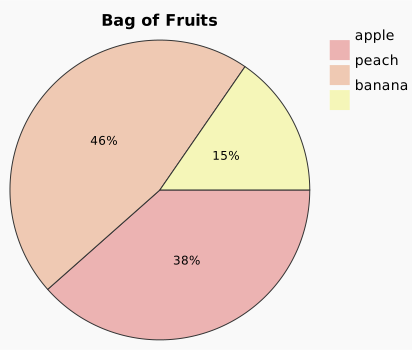
:::info
You can check out [the code for this tutorial](https://github.com/hikerpig/pintora-diagram-pie-chart/tree/archive/simple-regexp-parser) on github.
:::
:::tip
Before implementing custom diagrams, please learn about Pintora's [technical brief](./technical-brief.md).
:::
## Basic syntax and DiagramIR
```text
pie
title Bag of Fruits
"apple" 5
"peach" 6
"banana" 2
```
1. the diagram description starts with `pie`
2. the content after `title` will be the title of the diagram
3. each row satisfies the `"" ` format, where `number` needs to be a positive number
The following is the definition of the logical diagram data `PieChartDiagramIR`.
```ts
export type Item = {
name: string
count: number
}
export type PieChartDiagramIR = {
title: string
items: Item[]
sum: number
}
```
## First glance at what is needed to register a diagram type
Based on syntax rule 1 above, we can derive the conditions for determining a diagram as a pieChart, described using the regular expression `/^\s*pie\s*\n/`. pintora will check the input text using the `pattern` it provides according to the order in which the diagrams are registered, using the first matching diagram for subsequent processing.
`parser` and `artist` we have not yet implemented, and will describe them in the following.
```ts
const pieChartDiagram: IDiagram = {
pattern: /^\s*pie\s*\n/,
parser,
artist,
}
pintora.diagramRegistry.registerDiagram('pieChart', pieChartDiagram)
```
## The parser
Since the syntax is really simple, we can quickly implement a parser using regular expressions based on line content matching:
- `TITLE_REGEXP` corresponds to syntax rule 2
- `RECORD_REGEXP` corresponds to syntax rule 3
- Currently we only accepts the contents of double quotes as item names
- Accepts simple positive numbers with decimal points, does not support scientific notation
```ts
const TITLE_REGEXP = /^title\s*(.*)/
const RECORD_REGEXP = /^\"(.*)\"\s+([\d\.]+)/
const parser: IDiagramParser = {
parse(input: string) {
const ir: PieChartDiagramIR = {
title: '',
items: [],
sum: 0,
}
const lines = input.split('\n')
for (const line of lines) {
let match
const trimmedLine = line.trim()
if (match = TITLE_REGEXP.exec(trimmedLine)) {
ir.title = match[1]
continue
}
if (match = RECORD_REGEXP.exec(trimmedLine)) {
const item: Item = {
name: match[1],
count: parseFloat(match[2]),
}
ir.items.push(item)
continue
}
}
ir.sum = ir.items.reduce((sum, item) => sum + item.count, 0)
return ir
}
}
export default parser
```
### Advanced: Using nearley.js to generate parser
Pintora's built-in diagrams use nearley.js as parser generator, and has some common grammar rules (such as the `@param` and `@config` directives), we will write another tutorial about it in the future.
The latest version of [pintora-diagram-pie-chart](https://github.com/hikerpig/pintora-diagram-pie-chart/blob/master/src/parser/pieChart.ne) uses a forked version of [nearley](https://github.com/hikerpig/nearley) to generate the parser.
## The artist
The amount of code for artist is usually the largest part of the diagram implementation, so we will break it down step by step.
### Basic structure
The artist is responsible for converting the parser-generated `diagramIR` into the visual representation format `GraphicsIR`, so the start and end of the implementation are shown below.
```ts
const pieChartArtist: IDiagramArtist = {
draw(diagramIR) {
const rootMark: Group = {
type: 'group',
children: [],
}
// ... TBD
const graphicsIR: GraphicsIR = {
mark: rootMark,
width,
height,
bgColor,
}
return graphicsIR
},
}
export default pieChartArtist
```
Also declare the following as the base diagram configuration that will be used when drawing the elements.
```ts
const PIE_COLORS = [
'#ecb3b2',
'#efc9b3',
'#f5f6b8',
'#c6f4b7',
'#bce6f5',
'#cdb2f2',
'#ecb4ee',
]
const LEGEND_SQUARE_SIZE = 20
const LEGEND_FONT: IFont = {
fontSize: 14,
fontFamily: 'sans-serif',
fontWeight: 'normal',
}
type PieConf = {
diagramPadding: number
diagramBackgroundColor: string
circleRadius: number
}
const conf: PieConf = {
diagramPadding: 10,
diagramBackgroundColor: '#F9F9F9',
circleRadius: 150,
}
```
### Draw the title
- The title text is centered horizontally based on itself (achieved with `textAlign: 'center'`), and `x` is the same as the center of the pie chart that will be drawn later
- The presence of the title affects the vertical position of the pie chart, and we use `circleStartY` to mark the starting position of the pie chart in the vertical direction
```ts
const radius = conf.circleRadius
let circleStartY = conf.diagramPadding
let circleStartX = conf.diagramPadding
if (diagramIR.title) {
const titleMark = pintora.util.makeMark('text', {
text: diagramIR.title,
x: circleStartX + radius,
y: circleStartY + 10,
fill: 'black',
fontSize: 16,
fontWeight: 'bold',
textBaseline: 'middle',
textAlign: 'center',
})
rootMark.children.push(titleMark)
circleStartY += 30
}
```
### Draw each item
This part is tedious with details, it can be summarized as: each item includes the sectors in the pie chart as well as the legend on the right, so corresponding to each part, it is necessary to:
- Plot the sector with an angle proportional to the number of items in the overall `sum`, denoted hereafter by `sectorMark`. It is a `Path` type marker, and the shape is described by `path`. For the syntax of paths, see the document [Paths - SVG: Scalable Vector Graphics | MDN](https://developer.mozilla.org/en-US/docs/Web/SVG/Tutorial/Paths).
- `pLabel` is a text type label that displays the percentage associated with the area in the sector.
- `legendSquare` is a small square of the same color as the sector, displayed in the legend area to the right of the pie chart.
- `legendLabel` appears to the right of `legendSquare` and shows the name of the legend.
- When calculating the layout, `pintora.util.calculateTextDimensions(text, fontConfig)` is used to calculate the size of the visual area of the text, which is used to determine the placement of subsequent elements.
After generating all the tags needed for a single item, group them into `itemGroup` and add `itemGroup` to `rootMark.children`. The `Group` can be nested appropriately according to your needs. A reasonable grouping is convenient for debugging on the one hand, and on the other hand you can use some special fields, such as `group.matrix` to do geometric transformations on the whole group.
Notice the `class` attribute on `itemGroup`, which will be carried in the SVG output and is also a little trick to facilitate debugging.
```ts
diagramIR.items.forEach((item, i) => {
const fillColor = PIE_COLORS[i % PIE_COLORS.length]
const rad = (item.count / diagramIR.sum) * RAD_OF_A_CIRCLE
const destRad = currentRad + rad
const arcStartX = radius * Math.cos(currentRad)
const arcStartY = radius * Math.sin(currentRad)
const arcEndRel = {
x: radius * Math.cos(destRad),
y: radius * Math.sin(destRad),
}
const largeArcFlag = rad > Math.PI ? 1 : 0
const sectorMark = pintora.util.makeMark('path', {
path: [
['M', circleCenter.x, circleCenter.y],
['l', arcStartX, arcStartY],
[
'a',
radius,
radius,
currentRad,
largeArcFlag,
1,
arcEndRel.x - arcStartX,
arcEndRel.y - arcStartY,
],
['Z'],
],
stroke: '#333',
fill: fillColor,
})
// draw percentage label
const pLabelX =
circleCenter.x + (radius * Math.cos(currentRad + rad / 2)) / 2
const pLabelY =
circleCenter.y + (radius * Math.sin(currentRad + rad / 2)) / 2
const pLabel = pintora.util.makeMark('text', {
text: `${Math.floor((100 * item.count) / diagramIR.sum)}%`,
fill: 'black',
x: pLabelX,
y: pLabelY,
textAlign: 'center',
textBaseline: 'middle',
})
// draw legend
const legendSquare = pintora.util.makeMark('rect', {
fill: fillColor,
width: LEGEND_SQUARE_SIZE,
height: LEGEND_SQUARE_SIZE,
x: legendStart.x,
y: currentLabelY,
})
const labelX = legendStart.x + LEGEND_SQUARE_SIZE + 5
const legendLabel = pintora.util.makeMark('text', {
text: item.name,
fill: 'black',
x: labelX,
y: currentLabelY,
...(LEGEND_FONT as any),
textBaseline: 'top',
})
currentRad = destRad
currentLabelY += LEGEND_SQUARE_SIZE + 5
const labelDims = pintora.util.calculateTextDimensions(
item.name,
LEGEND_FONT
)
maxLabelRight = Math.max(maxLabelRight, labelX + labelDims.width)
const itemGroup: Group = {
type: 'group',
children: [sectorMark, pLabel, legendSquare, legendLabel],
class: 'pie__item'
}
rootMark.children.push(itemGroup)
})
```
### Calculate the final size of the diagram
At this point, the final `graphicsIR` is complete with all the required data.
```ts
const diagramWidth = maxLabelRight + conf.diagramPadding
const graphicsIR: GraphicsIR = {
mark: rootMark,
width: diagramWidth,
height: circleStartY + 2 * radius + conf.diagramPadding,
bgColor: conf.diagramBackgroundColor,
}
```
## Next step: Adding config to the diagram
For basic concepts of config, see the [Configuration documentation](configuration/config.md).
With Typescript's type enhancement feature, you can extend the `interface PintoraConfig` in the `@pintora/core` package to add some pie-chart specific configs, and can be saved and accessed by the key `pie`.
```ts
declare module '@pintora/core' {
interface PintoraConfig {
pie: {
diagramPadding: number
diagramBackgroundColor: string
circleRadius: number
pieColors: string[]
}
}
}
```
### Set the default config for your diagram
Before registering the diagram, use `pintora.setConfig({ pie: { ...defaultConfig } })` to set the default config for `pie`.
```diff
-const PIE_COLORS = [
+const DEFAULT_PIE_COLORS = [
'#ecb3b2',
'#efc9b3',
'#f5f6b8',
@@ -19,21 +19,25 @@ const LEGEND_FONT: IFont = {
fontWeight: 'normal',
}
-type PieConf = {
- diagramPadding: number
- diagramBackgroundColor: string
- circleRadius: number
-}
+type PieConf = PintoraConfig['pie']
-const conf: PieConf = {
+// default config
+const defaultConfig: PieConf = {
diagramPadding: 10,
diagramBackgroundColor: '#F9F9F9',
circleRadius: 150,
+ pieColors: DEFAULT_PIE_COLORS
}
+pintora.setConfig({
+ pie: { ...defaultConfig },
+})
+
```
### Some changes to the artist
```diff
- draw(diagramIR) {
+ draw(diagramIR, config) {
+ const conf: PieConf = Object.assign({}, pintora.getConfig().pie, config || {})
+
const rootMark: Group = {
type: 'group',
children: [],
@@ -74,7 +78,7 @@ const pieChartArtist: IDiagramArtist = {
let currentLabelY = legendStart.y
let maxLabelRight = 0
diagramIR.items.forEach((item, i) => {
- const fillColor = PIE_COLORS[i % PIE_COLORS.length]
+ const fillColor = conf.pieColors[i % conf.pieColors.length]
```
## Testing the diagram
We can use any bundler to package the source code of this diagram as `dist/pintora-diagram-pie-chart.umd.js`, which can be tested in an html page to see the effect.
The `pintora-diagram-pie-chart.umd.js` will register the custom diagram to pintora, please make sure that global `pintora` object is loaded before the custom diagram script loads.
```html
pie
title Bag of Fruits
"apple" 5
"peach" 6
"banana" 2
```
## Show time
You can check the [online dev demo on stackblitz](https://stackblitz.com/edit/pintora-diagram-pie-chart?file=README.md).